Want to watch YouTube TV abroad? A YouTube TV VPN lets you connect to a US IP address to unblock your account while traveling or living in a country where YouTube TV is not officially available.
In this guide, I explain how to change your YouTube TV location to watch YouTube TV internationally. You’ll learn how to fix the common YouTube TV VPN proxy detected message, bypass blocks at work or in school, and pick the best VPN for YouTube TV.
How to watch YouTube TV abroad with a VPN
Here’s how to watch YouTube TV abroad:
- Choose a VPN for YouTube TV. I recommend NordVPN for the best overall performance. It is fast, fairly priced, and highly reliable for streaming. Surfshark is an excellent alternative if you want a low-cost VPN with unlimited connections. Total VPN is perfect if you want an all-rounder VPN.
- Subscribe to the VPN. The links above redeem a special coupon code that gets you the VPN at a steep discount. Each recommended service also provides a 30-day money-back guarantee.
- Install the VPN app. The best VPNs for YouTube TV have apps for Windows, macOS, Android, iOS, Fire TV, and other popular devices.
- Connect to a US server. YouTube TV is US-only, so pick a server in America. The VPN will replace your real IP address with a US IP address, helping you bypass YouTube TV location restrictions.
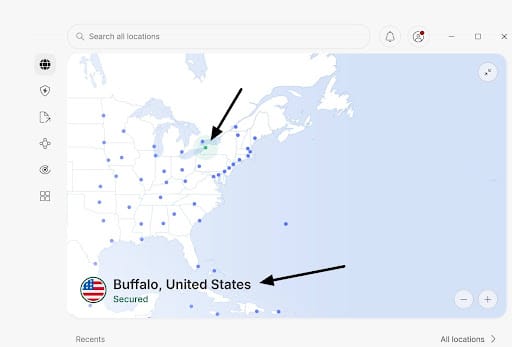
- Open YouTube TV and sign in. Once the VPN connects, navigate to the YouTube TV website. You should now be able to access your account and stream from anywhere. That’s it!
Note: The NordVPN screenshot above shows the fastest US server available to me. If the fastest server doesn’t work with YouTube TV, contact live chat for advice.
VPN not working with YouTube TV? Troubleshooting tips
If your VPN is not working with YouTube TV, you may see an error stating, “Sorry, but YouTube TV is not available in your area just yet.” When this happens, I recommend using the troubleshooting steps below.
YouTube TV VPN troubleshooting steps:
- Switch to the YouTube TV website instead of the mobile app. Mobile apps check additional location signals, including GPS data, which can reveal that you are outside the US.
- Clear your browser cookies and cache to remove old location data and trackers.
- Switch to another US VPN server.
- Try a server in a different US city.
- Change VPN protocols, such as switching between WireGuard and OpenVPN.
- Disconnect and reconnect to get a new US IP address.
- Restart the VPN app, browser, and streaming device.
- Disable location permissions for your browser where possible.
- Update your YouTube TV playback area.
- Check that your YouTube TV Home Area and YouTube TV ZIP code are set correctly.
- Check that the VPN is connected and that you’ve selected a US server.
- Update the YouTube TV app to the latest version.
- Clear the YouTube TV app’s cache and saved data.
- Enable stealth or obfuscation mode if your VPN includes it.
Testing methodology: How I chose the best VPNs for YouTube TV
There are many different VPNs out there. However, not all of them are created equal. Here are some of the factors I considered when making my choice of the best VPNs for YouTube TV:
- Servers: It’s important for VPN services to have a strong server network; this means servers in different countries. For YouTube TV, a provider needs to offer many different US servers.
- Ability to unblock services: Not all VPN services can unblock streaming services. The VPNs on this list have consistently proven capable of accessing YouTube TV and similar platforms.
- Security: VPNs can provide protection against hackers on open WiFi networks and mask your identity when online. All of the providers on this list have excellent security features.
- Speed: These VPNs offer fast connection speeds to ensure users are able to stream comfortably without buffering.
- Value for money: We use strict criteria to gauge whether providers offer good value for money and always tell you if they offer free trials or money-back guarantees.
Check out our testing methodology for more details on how we find the best VPNs for the job.
Why is YouTube TV restricted to the US?
If you are outside America, you will see the following error message when you try to log in and stream your account: “It looks like you’re outside of the United States. YouTube TV is only available in the US.”
This happens because of licensing agreements. Broadcasters that offer content over the internet must use location-checking technologies to determine where each visitor is. If a user’s IP address is outside the licensed region, the service must display a location error message, even if they are a paying subscriber. This is why valid US account holders also receive an error message when they go on vacation.
What is the difference between YouTube TV home area and playback area?
Your YouTube TV Home Area is the US ZIP code you provide when setting up your YouTube TV subscription. It controls your local channels and regional programming.
Your YouTube TV playback area is different. It is the location YouTube TV detects in real time as you stream. The playback area tool may check your IP address, browser location, and GPS data to enforce licensing rules and decide which local content to show.
If you already have a US YouTube TV account but are currently abroad for work or on vacation, you should only need to connect to a US VPN server before logging in. This makes you appear to be back home and keeps your YouTube TV home area and playback area consistent.
If you live abroad and your Google account is tied to another country, you have two options. You can change your account settings to switch everything over to the US (following the instructions below). Alternatively, it may be easier to create a new Google account while connected to the VPN and use it for watching YouTube TV from abroad.
This helps keep your account and location signals aligned with the US from the start. It also lets you keep using your old YouTube account to watch local content and get recommendations from your own region as usual.
How to change your YouTube TV Home Area
- Connect to a VPN server in the US city or state you want to use.
- Open YouTube TV in a browser rather than the mobile app.
- Sign in and click your profile picture.
- Select Settings, followed by Area.
- Find Home Area and click Update.
- Allow YouTube TV to detect your new US location.
- Confirm the Home Area when prompted.
YouTube TV only lets you change your Home Area twice within 12 months, so choose the location carefully. Remember that setting a new Home Area may affect the local channels and regional content you see when disconnected from the VPN.
How to update your YouTube TV playback area
Your playback area is the location YouTube TV detects when you actively stream videos in real time. To update it from abroad, simply connect to a US VPN server before opening YouTube TV. I provided these steps earlier in the guide.
Once connected, your playback area should update to match the US location you picked in the VPN app. Remember to log in and watch YouTube TV in a browser. This helps prevent device-level location conflicts that could stop your VPN from working.
How to update your playback area on a smart TV
In some circumstances, YouTube TV may ask you to verify your smart TV’s playback area using a phone.
To do this, open Settings > Area > Current Playback Area on the TV, then follow the instructions on screen.
I recommend connecting your phone to the same US VPN location before visiting tv.youtube.com/verify. YouTube TV may also check your phone’s GPS location, so verification can fail if the GPS and VPN locations do not match.
If this happens, Android users can try Surfshark’s GPS Override feature or another GPS spoofing app to align both locations. Alternatively, watch YouTube TV in a supported browser on a computer, then connect the computer to your TV with an HDMI cable or cast the stream to a compatible device. This is often easier because the browser avoids many app-level GPS checks.
Can I use a free VPN for YouTube TV?
No. I tested market-leading free VPNs, including Proton VPN Free, Hotspot Shield Free, TunnelBear Free, and Windscribe Free. None of them worked reliably with YouTube TV.
These providers offer a basic free plan to help people gain privacy when they are in a bind. However, they reserve streaming access for paying subscribers. This makes sense because streaming servers need to stay fast, uncongested, and capable of bypassing VPN blocks. That is not possible if the server is available to users worldwide for free.
That would not happen if thousands of free users were sharing the same servers and IP addresses. Streaming servers also cost more to maintain because providers must keep replacing blocked IPs and testing them with platforms like YouTube TV.
More work and higher running costs give VPN providers a decent reason to charge for streaming access. The free plan creates a legitimate road to entry: you can test the VPN and get a sense of what it does, then upgrade if you want all the bells and whistles.
A paid plan gives you access to faster servers that work with platforms like YouTube TV, Netflix, Hulu, and HBO Max. For this reason, a free VPN for YouTube TV is unlikely to work, even when the provider itself is trustworthy.
Watching YouTube TV with a VPN: FAQ
Is it legal to use a VPN for YouTube TV?
Using a YouTube TV VPN is legal in most countries. However, using one to unblock YouTube TV may go against the platform’s terms or location rules.
YouTube TV usually responds by blocking known VPN IP addresses or displaying a location error. I have not seen evidence that ordinary subscribers are routinely prosecuted or fined for using a VPN.
VPN laws vary, so check the rules where you are located. This is general information, not legal advice.
Can I sign up for YouTube TV from abroad?
YouTube TV is intended for US residents, and you usually need US-linked payment details and a valid YouTube TV ZIP code to subscribe.
A YouTube TV VPN can give you a US IP address, but it does not provide suitable billing details. Some users pay with a US gift card or virtual card, although payment methods can still be rejected or require verification.
Once subscribed, you can connect to US VPN servers to watch YouTube TV internationally.
Will a VPN cause buffering on YouTube TV?
Every VPN adds some overhead, but a fast VPN for streaming should still let you watch in HD without interruptions.
YouTube TV recommends at least 13 Mbps for reliable HD streaming and 25 Mbps for supported 4K content. Connecting to a nearby US server and using WireGuard can help you avoid buffering YouTube TV.
If the stream buffers, switch servers, lower the video quality, or contact your VPN’s live chat team.
YouTube TV lets a family manager share a membership with up to five other people. However, every member is supposed to live in the same household.
Family members must periodically use YouTube TV from the home location to maintain access. Sharing permanently with people who live elsewhere may cause location checks or account problems.
A VPN may change a user’s IP address, but it does not remove YouTube TV’s household and Home Area requirements.
Can I use a VPN to change YouTube TV local channels or bypass sports blackouts?
Sometimes. Connecting to a VPN server in another US city can change your IP location and may give you access to that region’s local channels.
However, YouTube TV also checks your Home Area, playback area, and device location. For this reason, a VPN may not bypass every sports blackout, especially on mobile apps.
Contents [hide]
- How to watch YouTube TV abroad with a VPN
- VPN not working with YouTube TV? Troubleshooting tips
- Testing methodology: How I chose the best VPNs for YouTube TV
- Why is YouTube TV restricted to the US?
- What is the difference between YouTube TV home area and playback area?
- Can I use a free VPN for YouTube TV?
- Watching YouTube TV with a VPN: FAQ
- Is it legal to use a VPN for YouTube TV?
- Can I sign up for YouTube TV from abroad?
- Will a VPN cause buffering on YouTube TV?
- Can I share YouTube TV with family in different locations?
- Can I use a VPN to change YouTube TV local channels or bypass sports blackouts?