Cookies help websites remember things about you, but some also let advertisers track your activity across the web. So, what’s the best way to stop cookies from tracking you? Besides clearing your cookies regularly, your browser likely has built-in tools to block cross-site cookies and other tracking.
You can also use a content blocker like uBlock Origin to block scripts from advertising and analytics services before they load. Alternatively, privacy-focused browsers like the Tor Browser can limit other tracking methods that go beyond cookies.
Below, we’ll cover each method in more detail, the different types of cookies, where tracking cookies come from, and what information they can gather about you.
The easiest way to limit tracking cookies is to block them before they can follow you across websites. Modern browsers already include several privacy controls, so it’s worth checking those first before installing extra tools:
Clear existing cookies
Clearing your cookies removes tracking identifiers that websites and advertising services have already stored in your browser. However, your browser can’t tell the difference between useful ones that keep you logged in and intrusive cookies that track you around the web.
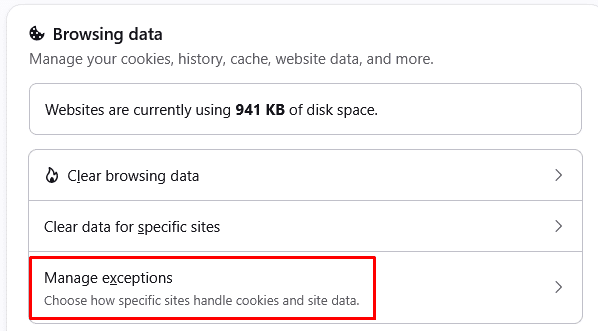
Still, you can add exceptions for sites you use regularly. This lets you clear cookies from most websites while keeping them for services where you want to stay signed in or preserve your preferences. Here’s what the setting looks like in Firefox.
Block cross-site cookies and use built-in tracking protection
Third-party cookies have traditionally been a major way for advertisers to track you across different websites. Many browsers now block or restrict them by default, but check your browser’s privacy settings to see what’s enabled and adjust the controls if needed.
For instance, Firefox lets you control which types of cross-site cookies it blocks under its Custom tracking protection settings.

Apart from cookies, Firefox, Brave, Safari, and other browsers can also block tracking scripts, browser fingerprinting techniques, and other methods websites use to follow you across the web. Check your browser’s privacy settings to see which protections it offers and how much control you have over them.
Use a content blocker
A reputable content blocker like uBlock Origin (uBO) can stop tracking scripts, advertising networks, and other third-party requests before they even load. This can reduce tracking beyond what cookie settings alone cover, while also removing many of the ads and other elements that rely on tracking cookies.
Keep in mind that uBO works best on Firefox (or forks like LibreWolf and IronFox) and browsers that still support Manifest V2, such as Brave. Chrome, Edge, and other Chromium-based browsers have moved to Manifest V3, which limits how extensions can filter network requests. uBO Lite works within those limits, but it offers less filtering power than the full version on Manifest V2.
Here’s uBO in action in Firefox, blocking requests from third-party tracking and analytics services as the Forbes page loads.

The logger shows exactly which connections the extension blocked, so you have a clearer idea of how uBO and similar tools block tracking behind the scenes.
If you need stronger privacy, the Tor Browser uses NoScript to control scripts and other content. However, the Tor Project discourages installing uBO or other extensions, since they can make your browser easier to distinguish from other Tor users.
These are the main tools you can use to stop cookies from tracking you, but it helps to understand what you’re actually blocking. Knowing how different cookies work makes it easier to see who’s tracking you and why these protections matter.
Cookies come in several forms, each with different purposes, expiry dates, and sources. The main types you’ll run into are:
- Session cookies: Only exist while your browser session is open and disappear when you close the browser. Sites often use them to keep track of things like shopping carts or temporary login sessions.
- First-party persistent cookies: Set by the website you’re visiting and stay on your device until they expire or you delete them. They can remember your preferences, keep you signed in, and save other settings between visits.
- Third-party persistent cookies: Cookies from a domain other than the website you’re visiting. When a site loads a resource from that domain, such as an ad, analytics script, or social media widget, it can use the cookie to recognize your browser and track you across websites. They remain on your device after you close the browser, though modern browsers now restrict them to some extent.
What are supercookies and are they still a threat?
Supercookies are tracking mechanisms that store identifying information outside your browser’s regular cookie storage. Because they don’t behave like ordinary cookies, simply clearing your cookies may not remove them.
Many browsers have added protections against supercookies and other traditional tracking techniques. However, websites and ad companies still have other ways to identify browsers, including browser fingerprinting and tracking IDs passed through URLs—like the si= parameter you may see after YouTube links.
So while supercookies aren’t the same threat they were during their heyday, the underlying tracking problem hasn’t gone away.
Tracking cookies often come from third-party services that websites use for advertising, analytics, social media features, and embedded content. When one of these services loads on a page, it may set or access a cookie associated with its own domain.
For example, a news website might load an ad from an advertising network. When the ad loads, the network may recognize your browser using a cookie it set earlier, or create a new identifier if it doesn’t have one. This lets it connect your visit with activity from other sites using the same service.
Some common sources of tracking cookies include:
- Advertising networks: Ads use tracking cookies to recognize your browser across websites and build profiles based on your activity.
- Analytics services: Analytics tools use cookies to measure visits, page views, and other activity, although not every analytics cookie tracks you across sites.
- Social media features: Like buttons, embedded posts, and other social features can send information back to the platform behind them when they load.
- Embedded content: Videos, maps, images, and other resources hosted by third parties sometimes set or access cookies when you view them.
Tracking cookies can store information that helps advertisers recognize your browser and connect your activity across websites. This data can include details about your device, browsing habits, interests, and interactions, such as:
- A unique identifier: A tracking cookie can contain an ID that lets an advertising platform recognize the same browser when it encounters that cookie again.
- Browsing activity: Which websites you visit, which pages you view, and how long you spend on them can give advertisers insight into your browsing habits.
- Products and purchases: Visits to shopping sites, products you view, and purchases can help advertisers figure out what you’re interested in and show you related ads.
- Searches and clicks: Search terms, links you click, and other interactions can provide more detail about what you’re looking for.
- Device information: Your browser, operating system, screen size, and other technical details can help advertisers distinguish your device from others.
- Ad activity: Advertisers can record which ads you see, how often you see them, and whether you click on them.
- Location information: A cookie itself doesn’t determine your physical location, but tracking companies can associate location data from your IP address, device, or other sources with your advertising profile.
Cookies don’t automatically know everything about you, but companies can combine cookie data with information from your accounts, purchases, devices, apps, and other sources to build a much more detailed profile.
Deleting cookies is generally safe, but it can reset some website preferences and sign you out of your accounts. Your browser will simply create new cookies as you visit sites again, so clearing them works best when you want to remove old or unwanted tracking data.
Deleting cookies won't delete passwords saved in your browser. Cookies store things like login sessions and preferences, while saved passwords use a separate part of the browser's storage. You may still get logged out of some sites after clearing them.
Keeping cookies enabled makes websites easier to use because they can remember logins, preferences, and other settings. Blocking all cookies can break some sites, so a better approach is to allow necessary cookies while blocking third-party tracking cookies where possible.
How often you should clear cookies depends on how much tracking you want to limit. You don't need to clear them every day, but doing it occasionally can remove old tracking data and stored sessions. Clearing cookies when you finish using shared devices is also a good idea.
How do I block all tracking?
Blocking all tracking takes more than just deleting cookies, since websites can use other methods to identify and track you. First off, you can use the Tor Browser to block trackers and minimize browser fingerprinting, and route your traffic through the Tor network for better privacy.
Meanwhile, a reliable no-logs VPN can hide your IP address and location, and encrypt (or scramble) your traffic so your ISP and other snoopers can't monitor your browsing—but with less of a performance impact than Tor.
Contents [hide]
- How to stop cookies from tracking you
- Types of cookies explained
- Where do tracking cookies come from?
- What do tracking cookies know about you?
- Stop cookie tracking FAQs
- Is it a bad idea to delete cookies?
- Will deleting cookies delete passwords?
- Is it better to have cookies on or off?
- How often should I clear cookies?
- How do I block all tracking?