Want to install an Android app that is “unavailable in your country”? Your Google Play Store region decides which apps, games, subscriptions, and prices Google displays. If you need region-specific apps, changing your Play Store location with a VPN can give you access to a different version of Google Play.
Not all VPNs work to change your Google Play Store location, so you must pick a provider carefully. In this guide, I explain the process and pinpoint the best VPNs for Play Store. I’ll also explain why your Google Play balance may not transfer, and how to clear Play Store cache so that Google recognizes your new location.
How to change Google Play country with a VPN
If you want to download an app from a country you are not physically in, you will need to connect to a VPN server in that country before changing your Google Play settings. This changes your IP address location and makes your connection match the region you want Google Play to detect.
For example, if you want to download BBC iPlayer, connect to a UK VPN server first. Then open Google Play and set your account to the UK second. Doing things this way around ensures that your main location signals match up.
Follow these steps to change your Play Store country with a VPN:
- Choose a VPN with servers in the country you need. I recommend NordVPN for Google Play because it has a fast Android app, reliable servers, and strong privacy features. Surfshark is an excellent alternative if you want a cheaper VPN with unlimited connections.
- Pay for a VPN subscription. You can get the VPN at the lowest available cost by following the links above. We have agreed on a discount for our readers, which is applied automatically when you use our links. You also receive a money-back guarantee, so you can test the VPN with Google Play risk-free.
- Download the VPN app. Install the VPN on your Android device. You can also install it on desktop if you use an Android emulator such as BlueStacks.
- Connect to a server in the Play Store country you need. Choose a VPN server in the country whose Google Play Store region you want to access. For example, you could connect to a UK server to download the BBC iPlayer app.
- Check your IP address location. Use an IP checker to confirm that your IP address has changed to the required region.
That’s it. Now that your VPN is set up and connected to the country you need, you are ready to manually change your Google Play country in the Google Play settings. Follow the steps below to complete the process.
Best VPNs for changing country or region on Google Play
- NordVPN: Best VPN overall for Google Play. Fast Android app, reliable servers, and strong privacy features. The Standard plan is enough for Google Play, and you can test it risk-free with its 30-day money-back guarantee.
- Surfshark: Best cheap VPN for Google Play. A low-cost VPN with unlimited device connections. Ideal if you want to change Play Store region on several phones, tablets, or family devices.
- Total VPN: A reliable VPN bundled with Total Antivirus. Ideal for users who want privacy and location-spoofing alongside their antivirus. Best for simple geo-spoofing, browsing, and everyday streaming.
- Proton VPN: Best for privacy-focused users. A secure VPN with strong encryption, a no-logs policy, and advanced privacy tools. A reliable option for users who want Secure Core servers and stronger protection than a basic VPN.
- ExpressVPN: Best premium VPN for Google Play. Fast, polished, and easy to use on Android. A strong option if you want a premium VPN that works smoothly across all your devices.
- IPVanish: Best for unlimited devices and access to US servers in 20+ cities. A solid VPN for users who want a VPN for multiple devices. It offers unlimited connections, strong encryption, and apps packed with useful features.
- CyberGhost: Best VPN for beginners. Simple apps, easy server selection, and great value for money. Ideal if you want to change Google Play Store location, access regional streams, and browse with stronger privacy.
How to manually change your country on Google Play
Once your VPN is connected to the country you need, you can open the Google Play Store app and change your country in settings. This lines up your IP address location with the Play Store region you want Google to detect.
Google says that to change your Google Play Store region, you must be in the new country and have a payment method from that country or region. This is required if you want to buy paid apps, subscriptions, or in-app purchases in the new region. That said, you usually don’t have to add a payment method if you only want to install free apps.
You can only change your Google Play country every 90 days. Once you switch to a new region, you must keep your account set to that region for three months.
I also recommend spending any existing Google Play balance before switching. Any remaining Google Play balance from your old country will not transfer. If you earned Play Store credit from a promotion, redeemed a Google Play gift card, or received rewards credit, consider spending it first.
Here are the steps to manually change your country on Google Play:
- Open the Play Store app. Tap your profile icon in the top-right corner.

- Go to your Google account settings. Tap Settings, then General, then Account and device preferences.

- Open Country and profiles. If Google detects that you are in another country, you should see an option that says Switch to the [country] Play Store. If the country option does not appear in Google Play, check your Google Payments profile at pay.google.com. Google may require you to create a new payments profile for the country you want to use before the Play Store updates.

- Choose the new country. Tap Switch to the [country] Play Store and set the country you want. Google may only show you this option if your IP address is detected in a different region from the one your account is currently set to.
- Add a local payment method. If you want to purchase apps, you will need to add a valid Google Play payment method for your new country.
- Review the warning and confirm. Google may warn you that changing your region can affect some apps, games, books, subscriptions, prices, and payment options. Review the warning carefully and accept only if you understand the consequences.
- Wait for Google Play to update. Google says a country change can take up to 48 hours. If the store still shows your old region after that time, head to Android settings to clear the Play Store cache and app data, then reopen the app.

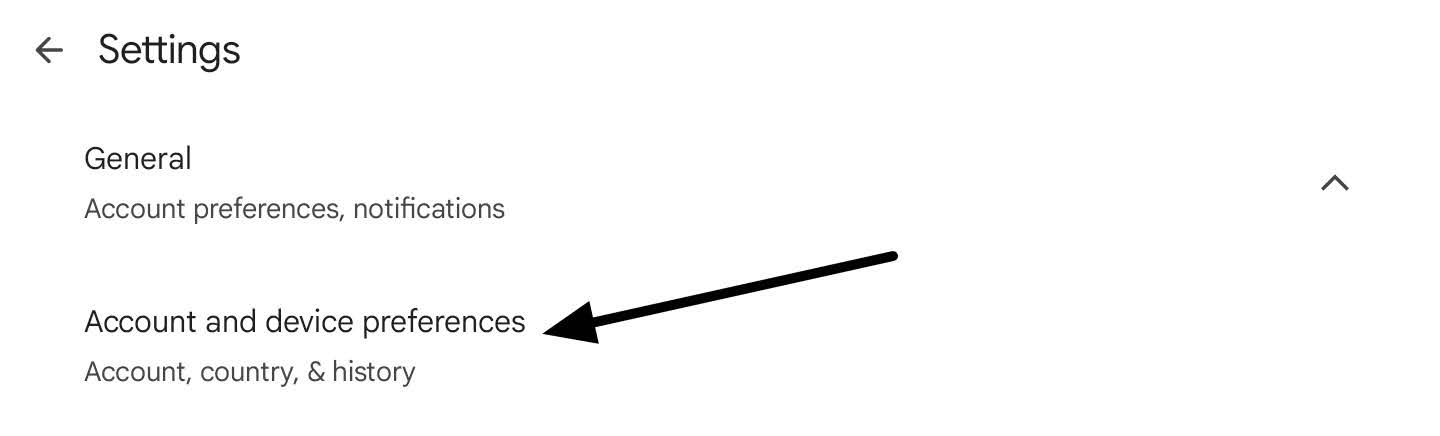

As you can see from the screenshots above, Google allowed me to choose another region without adding PayPal or a credit or debit card. This works if you only want to download and install free apps. For paid apps, subscriptions, or in-app purchases, you will need to add a valid local payment method.
Change Google Play Store country: Troubleshooting
Now that you’ve connected to a VPN in the desired region and updated your Google Play region, your app store should update within 48 hours. This should allow you to download and install many regionally restricted apps or services that are not usually included in your home region’s Play Store.
Run through these steps to get your VPN working with Google Play:
- Check your VPN connection. Make sure your VPN is still connected to a server in the country you selected for Google Play.
- Check your IP address location. Use an IP checker to confirm your IP address matches your chosen Play Store region. If it does not, reconnect to another VPN server.
- Clear the Play Store cache. Go to Settings > Apps > Google Play Store > Storage > Clear cache. Then reopen Google Play while the VPN is still connected.
- Clear Play Store app data. If the store still shows your old region, clear app data as well. This gives Google Play a cleaner refresh.
- Restart your Android device. Keep the VPN connected, restart your phone or tablet, then open the Play Store again.
- Check your payment method. Google may ask for a payment method from the new country if you want to buy paid apps, subscriptions, or in-app purchases.
- Wait up to 48 hours. Google says Play country changes can take up to 48 hours to appear, so the store may not update instantly.
- Try another Google account. If your main account stays tied to your old Google Payments profile, use a separate Google account while connected to the VPN.
- Check app compatibility. Some apps remain blocked because of your device model, Android version, age settings, country restrictions, or developer rules.
- Test a dedicated IP. My top recommended VPNs for Play Store offer dedicated static IPs. This kind of VPN server is reserved for your use only, which keeps your IP address consistent every session and helps reduce errors when Google services process your new location.
Android apps and services can also use location signals such as GPS, device settings, mobile networks, wifi, and Google Play Services. This can sometimes conflict with your VPN. If the steps above do not work, you may decide to test changing your GPS location as well as your IP address. Many users do this by installing a GPS spoofing app.
Do I need a GPS spoofing app for Google Play?
No. You should be able to change your Play Store region using a VPN only. That means you should usually not need a GPS spoofing app.
That said, your phone’s GPS location can potentially conflict with your VPN. If you have set everything up correctly and are still seeing location errors, you may want to test a GPS spoofing app.
There are many location spoofing apps available on Google Play. Two popular options include GPS JoyStick by The App Ninjas and Fake GPS Location by Lexa. However, I did not test any GPS spoofing apps for this article, and these options should not be taken as an endorsement.
Before installing any GPS spoofing app, check the developer, permissions, privacy policy, and reputation. This will help you avoid insecure apps that collect more data than necessary.
My methodology for finding the best VPN for Google Play
Not every VPN works well to change the region on Google Play. Some VPNs have slow Android apps, weak privacy policies, or servers that are easily detected and blocked. To recommend useful VPNs that offer strong privacy and reliable location spoofing, I checked the following things:
- Servers: I looked for VPNs with reliable servers in popular Google Play regions, including the US, UK, Canada, and Europe. I tested for IP and DNS leaks and only recommended VPNs that connected to IP addresses in the advertised city or country without exposing my real location.
- Android apps: A good VPN for Google Play must work smoothly on Android. I looked for simple apps, fast connection times, clear server menus, and support for users who also want to run Google Play through Android emulators such as BlueStacks.
- Speed: Fast speeds are important for downloading apps, updating games, browsing, and streaming after installation. I prioritized VPNs that deliver smooth performance without slowing your Android device unnecessarily.
- Privacy and security: I only considered VPNs with strong encryption, leak protection, and trustworthy privacy policies. A VPN for Google Play should hide your IP address location without exposing your browsing activity to unnecessary risks.
- Value: I checked prices, device limits, refund policies, and long-term discounts. The best VPNs for Play Store give you reliable location spoofing, useful security tools, and a money-back guarantee so you can test them risk-free.
You can find out more about how I test and rank providers in my expert-led VPN testing methodology.
Frequently asked questions
How often can I change my Google Play country?
Google says you must wait at least 90 days after setting or changing your Google Play country before you can change it again. For this reason, you should only switch regions when you are sure. You may also lose access to your old Google Play balance, payment options, and some region-specific apps.
Can I change my Google Play country without a credit card?
Yes, but only if you want to install free apps. Google says you need a payment method from the new country to change your Play country, but many users can access free regional apps without adding a card. For paid apps, subscriptions, and in-app purchases, expect to need a local payment method.
Why does Google Play ask for a local payment method?
Google uses your payment method to update your Google Payments profile and help set your new region. This is why an internationally accepted Visa card may not always work. The card may still be linked to your home country and could result in a conflict.
What happens to my Google Play balance when I change country?
Your Google Play balance does not transfer to the new country. This includes credit from gift cards, promotions, and rewards. Spend any remaining balance before you switch, because your old Play balance will not transfer to the new region.
Can I sideload an APK instead of changing Google Play region?
Yes. If you have issues changing region, or you simply want to test a faster method, sideloading the app you need can be a decent option.
However, it is important to remember that APK files from unofficial sites can contain malware or trackers. Sourcing apps from Google Play is usually safer because app updates, developer details, and payment protections are easier to verify.
That said, as long as you use a reliable source and are sure that you are installing the genuine version of the app you need, you should be able to install it without issues. Just bear in mind that if the app you sideload is region-locked, it may still require you to use a VPN to make your IP address match the correct country.
Contents [hide]
- How to change Google Play country with a VPN
- Best VPNs for changing country or region on Google Play
- How to manually change your country on Google Play
- Change Google Play Store country: Troubleshooting
- My methodology for finding the best VPN for Google Play
- Frequently asked questions
- How often can I change my Google Play country?
- Can I change my Google Play country without a credit card?
- Why does Google Play ask for a local payment method?
- What happens to my Google Play balance when I change country?
- Can I sideload an APK instead of changing Google Play region?